
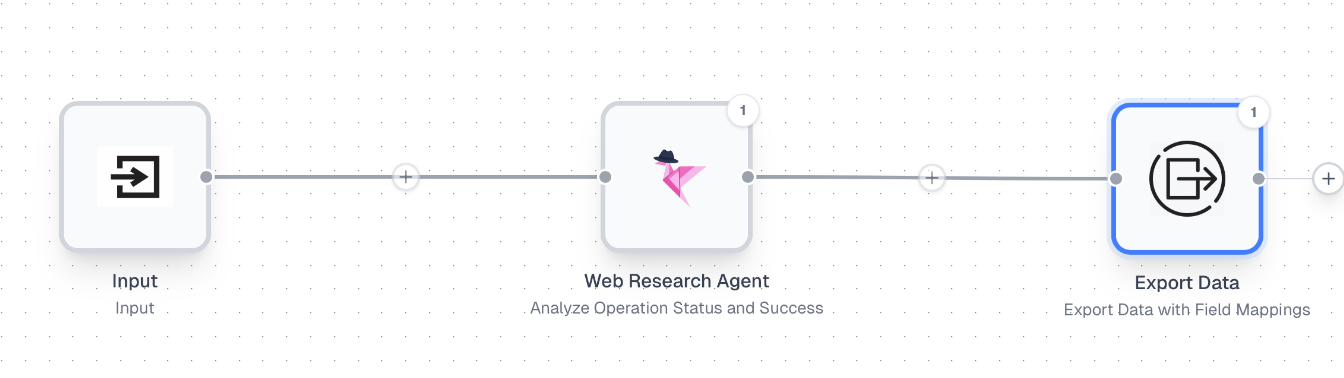
The Input Node
The Input node is where your API data enters the workflow. When you make an API request, the rows you send become the rows processed by your workflow.How it works
The Input node has two modes:- Add Rows - Manually add test data to simulate workflow runs during development
- From API Run - When triggered via API, data comes from your API request instead
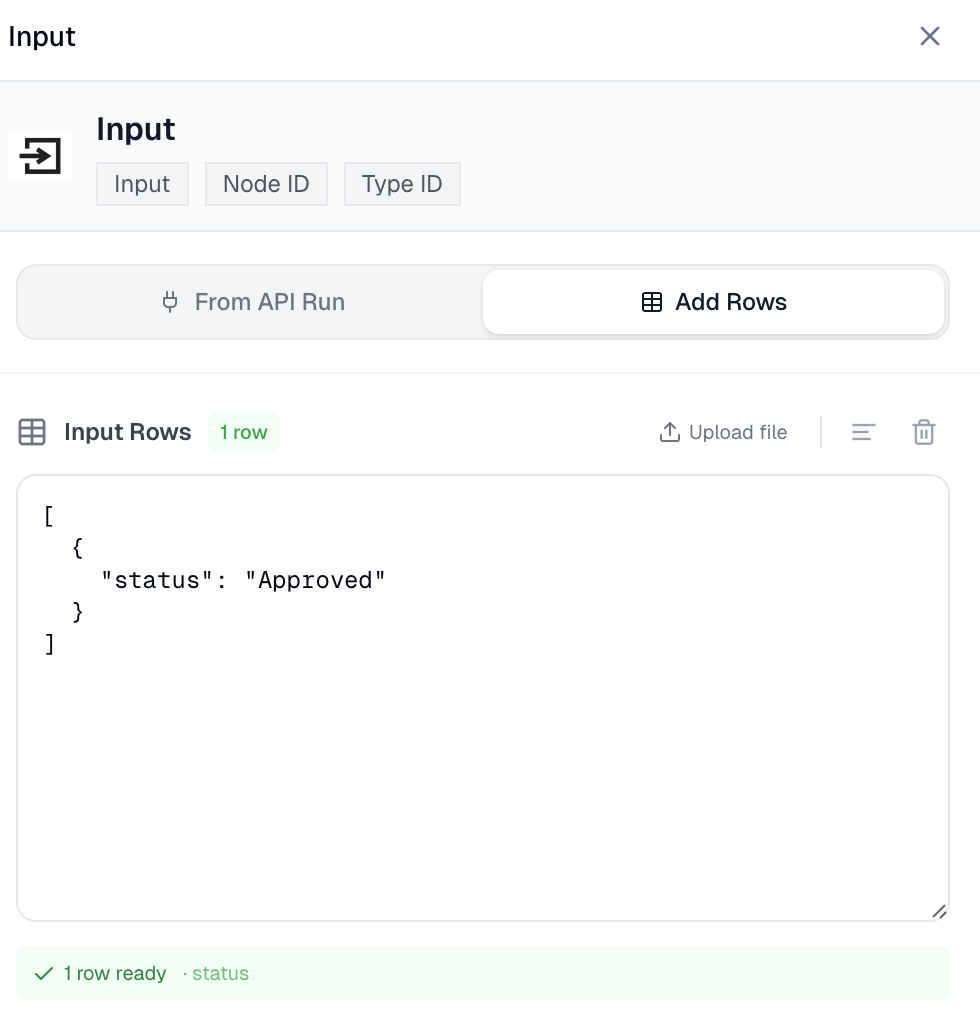
Copy the sample request body
Once you’ve added test data, the Input node shows an API Usage section with a ready-to-use request body. Click Copy to grab the exact payload for your API request.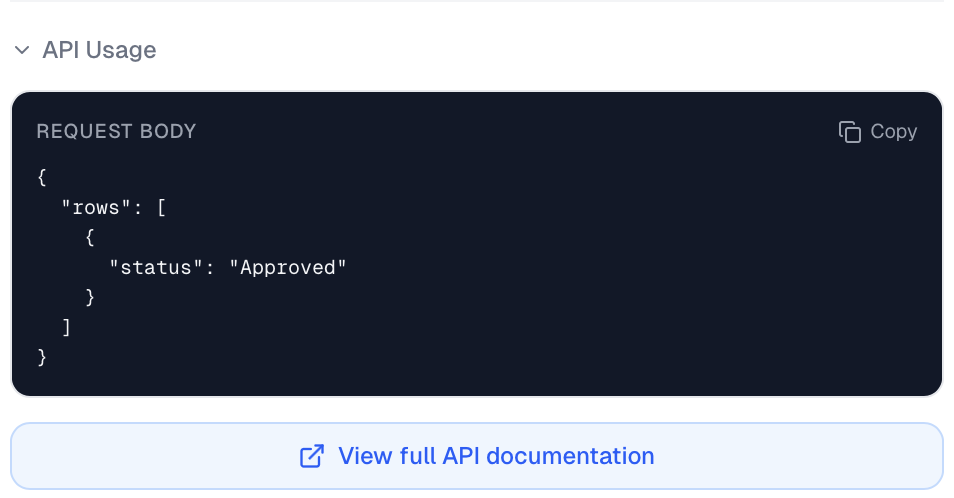
The Output Node
The Output node defines what data your API returns. You configure it using field mappings that specify exactly what gets included in your response.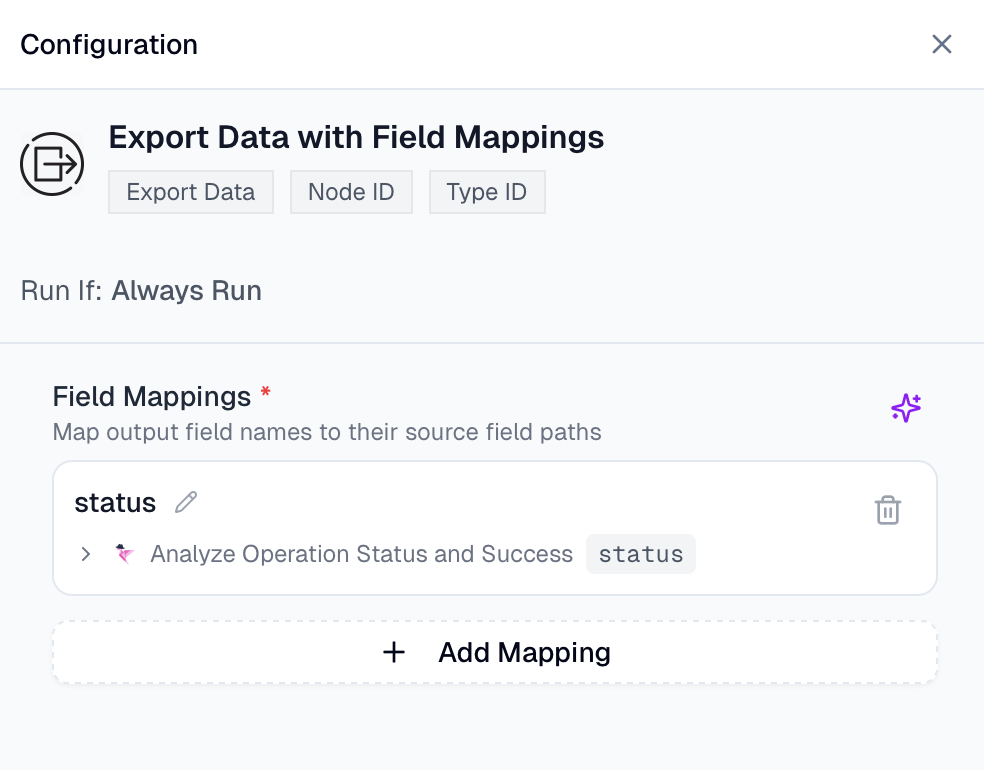
Field mappings
Each field mapping creates one key in your output JSON. You define:- The output key - The name of the field in your response
- The source path - Where to pull the value from (a field from another node)
Output structure
When you fetch results from a completed run, the response contains a map of row IDs to their output objects:You can have multiple Output nodes in a workflow. The API response will include data from all of them, merged into each row’s output object.
Putting it all together
1
Add an Input node
This receives the
rows array from your API request2
Build your workflow
Process the data through whatever nodes you need
3
Add an Output node
Configure field mappings to define what data gets returned
4
Test with sample data
Add test rows to the Input node and run the workflow manually
5
Copy and use the API
Copy the sample request body and make your API call
Next Steps
Quickstart
Make your first API call
Trigger Runs
Full API reference for triggering runs